Free Count and Circle Worksheet Generator
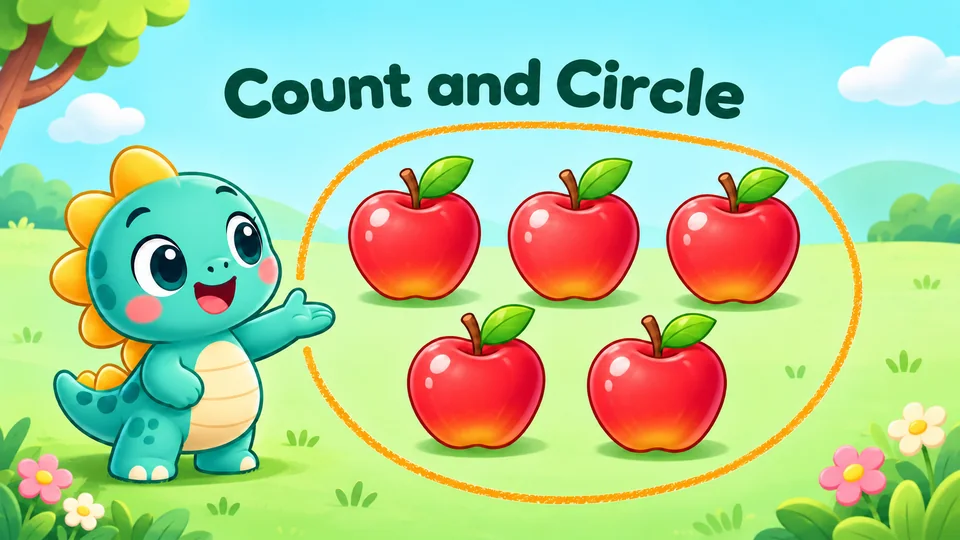
A counting worksheet: each box shows a group of apples, stars, balls, hearts, fish or flowers and three numbers. The child counts the pictures and circles the number that tells how many.
- Live preview as you type
- Play on-screen with instant feedback
- Print or save as a separate PDF
- Custom title, directions, and answer key
Preview Worksheet
Click Create worksheet to generate a preview
Or, pull real count and circle questions from your syllabus
Pick a class, subject, and lesson to load curriculum-aligned questions for the same skill as the generator above.
Choose a class, subject, and lesson above to load questions.
Related worksheet generators
Build a complete practice packet by combining count and circle with these complementary skills. Every link below opens the same live-preview builder you're using right now.
Try the lesson-wise builder
See what your school teaches — or generate syllabus-aligned questions on demand. While count and circle is great for focused practice, the lesson-wise builder pulls questions directly from your class syllabus topics.
Covers every math topic in your class syllabus, not just individual skills.

Math Facts Generator
Timed fact drills by strategy, with a tip and a beat-your-score chart.
Open generator
Addition Generator
Build custom addition practice with regrouping and flexible ranges.
Open generator
Subtraction Generator
Subtraction practice with borrowing and adjustable ranges.
Open generator
Word Search Generator
Theme-based word searches with adjustable grid size.
Open generatorWhat you'll see on the page
A quick tour of the count and circle worksheet — the problem types, the mistakes we deliberately avoid, and the standards each sheet lines up with.
Sample problems
Every worksheet randomly regenerates, but the format stays consistent with these examples.
- 1)7 apples: 6 · 8 · 7
- 2)4 stars: 4 · 5 · 2
- 3)13 fish: 12 · 11 · 13
Classroom tips
What teachers and tutors have found works well with these sheets in real classrooms.
- Have your child touch each picture once as they count it.
- Ask 'How many?' after counting: the last number said is how many there are.
- Move to 'Count up to 10' when 5 feels easy.
What is the count and circle worksheet generator?
A counting worksheet: each box shows a group of apples, stars, balls, hearts, fish or flowers and three numbers. The child counts the pictures and circles the number that tells how many.
How to use the count and circle generator
- 1)Pick a grade preset, or choose to count up to 5, 10 or 20.
- 2)Choose how many questions (4 to 12).
- 3)Print it with the answer key. Click 'New set' for a fresh page.
When this worksheet is most useful
Use this count and Circle worksheet when you want practice that feels focused instead of random. It works well for warm-ups, short review, reteaching, homework, tutoring, or one calm extra page after a child almost understands the concept but still needs repetition.
Most visitors landing here are trying to solve a practical problem: they need printable practice that matches the learner in front of them today. The controls help you narrow the task so the page feels manageable, whether the goal is confidence-building review, fluency, or a slightly harder follow-up.
Why teachers and parents choose it
- The right number is in a random place among the three choices, never always in the middle
- Counts come in random order, not 2, 3, 4, 5…
- Rows of five help children see 5 and 10
- All pictures in a box are the same object and color, so only counting gives the answer
How to choose the right settings
- Start with the smallest setting that still matches the lesson. Fewer problems and a tighter range usually feel more achievable, especially for a child who is still learning the routine or who gets overwhelmed by a crowded page.
- Increase only one variable at a time. That might mean adding a few more problems, widening the number range, or turning on a harder option. Changing one thing at a time makes it easier to see whether the learner is ready for the next step.
- If the worksheet suddenly feels too hard, check the skills behind it: Counting objects, One-to-one correspondence, and Number recognition. Struggle often comes from a missing supporting skill rather than the worksheet format itself.
Teacher ideas
- Have your child touch each picture once as they count it.
- Ask 'How many?' after counting: the last number said is how many there are.
- Move to 'Count up to 10' when 5 feels easy.
- Teachers often use this page to create a fast warm-up, an independent center page, a short intervention sheet, or a homework version of the same skill. Because the answer key is separate, it also works well for self-check stations and partner review.
- Have your child touch each picture once as they count it.
Parent tips for home practice
- Have your child touch each picture once as they count it.
- Ask 'How many?' after counting: the last number said is how many there are.
- Move to 'Count up to 10' when 5 feels easy.
- Parents usually get the best results when the worksheet is used as one short practice step, not the whole lesson. A focused page can help a child recover after a confusing school day, review before a quiz, or keep skills fresh without turning practice into a long negotiation.
- Have your child touch each picture once as they count it.
Three steps. One perfect worksheet.
No accounts, no friction. Customize the controls and print.
Step 1
Customize
Set the controls on the left to match the skill you're targeting.
Step 2
Preview
The right pane updates as you change settings — no waiting on a download.
Step 3
Print or save
Print to paper, or download the worksheet and answer key as separate PDFs.
Made by teachers, loved by parents
Every generator is designed around the skills students actually need to master at each class level.
- Aligned to elementary skill progressions
- Saves 20+ minutes per worksheet
- Printable, savable, and re-runnable
- No watermarks, no signup walls
US & India
Region-tuned content
Easy to start
No signup required
15+ generators
Math, vocab, and logic
Always free
Built by iBloom
Count and Circle worksheet questions
Answers to the most common questions teachers and parents ask about this count and circle worksheet generator.
Why is the answer in a different place each time?
If the right number is always in the same place, or the counts go up by one each row, a child can circle the pattern without counting. Each row here is shuffled.
Which setting for UKG?
Start with 'Count up to 5' or '10'. By the end of UKG children count up to 20 objects (foundational curriculum K.CC.B.5).
Is this worksheet generator really free?
Yes — every generator on this page is 100% free to use, with no signup required. You can generate, preview, print, and download as many worksheets as you like.
Can I save a worksheet to print later?
Yes. Use the "Worksheet PDF" button to download a print-ready PDF. The PDF includes the problems, your custom title, and a header strip for the student's name and date. The matching answer key downloads as a separate file when you click "Answer Key PDF".
Do I need a printer?
No. The PDF is a regular file you can open on any device. Many teachers send the PDF to students digitally, project it on a screen for whole-class work, or use it as a homework assignment in a learning management system.
Can I make a worksheet with my own words or numbers?
Each generator lets you pick from a few common option sets (number of problems, difficulty, etc.). Custom word lists and custom problem sets are not yet available, but the variation is large enough that a freshly generated page almost never repeats.
Does it work for UKG and Class 1?
Yes. Most generators include a "LKG" or "K" option in the class picker. The number range, line spacing, and font size are tuned to be readable for early learners.
Print a worksheet your students will actually finish
Free, fast, and printable. No signup required to start.