Writing On The Computer worksheet for Class 1

Lesson-Wise Builder
A premium AI tool that creates syllabus-aligned questions and worksheets for any lesson in seconds.
Writing on a computer for Class 1
This Class 1 activity teaches children to connect common keyboard keys with their standard jobs. The verified questions use true-or-false statements about Delete and Enter, then ask the learner to identify the tool used to type words on a smartphone. Children need to read each statement, inspect the picture, and explain the key function before choosing.
The page supports early computer writing and keyboard awareness. It does not test typing speed. A useful response names the key, states what it does, and shows where the cursor or text would change.
Keyboard basics children need
A keyboard sends letters, numbers, spaces, and commands to a computer or phone. Letter keys type words. The Spacebar adds a gap between words. Enter often moves the cursor to the next line; some programs use it to accept a command. Delete and Backspace remove text, but they work from different sides of the cursor in many programs.
The cursor marks the place where typing or editing will happen. Children should find the cursor before pressing an editing key. A laptop has a physical keyboard. A smartphone often shows a virtual keyboard on the touchscreen when the learner taps a text box.
What the Delete key does
The Delete key removes a selected item or the character next to the cursor, depending on the device and program. On a standard computer keyboard, Delete often removes the character to the right of the cursor. If a blank space sits there, Delete can remove that space. A selected space or group of letters can also be deleted.
Teach the child to point to the cursor, name the unwanted character, and press once. Holding the key can remove more text than intended. The learner should read the sentence after editing to check that the correct character disappeared.
Spaces between typed words
The Spacebar adds a blank space between words. One clear space helps a reader see where one word ends and the next begins. A missing space joins words. Two spaces create an extra gap. Children can add a missing gap with Spacebar or remove an extra gap with Delete or Backspace after placing the cursor in the correct spot.
Use a short sentence such as I have a pet.
Ask the child to find each word boundary. Then add one extra space and let the child describe how to fix it without changing the letters.
What the Enter key does
Enter commonly starts a new line in a writing area. Some programs use it to confirm a choice, send a search, or submit a response. It does not serve as the standard key for deleting letters. The key may also carry the label Return on some keyboards.
Children can remember the difference with a short phrase: Enter moves or confirms; Delete removes.
The exact action can depend on the program, so an adult should demonstrate it in the text box the child will use.
Delete, Backspace and Enter are different
- Backspace commonly removes the character to the left of the cursor.
- Delete commonly removes the character to the right of the cursor or removes selected text.
- Enter moves to another line in a writing field and can accept a command in other software.
Move the cursor beside one wrong letter and ask which deletion key would reach it. This small demonstration makes the direction visible. Keyboard layouts and apps can vary, so the child should watch the text after each press.
Question 1: deleting a blank space
The first verified prompt states that a user can delete blank spaces between words with the Delete key. The picture shows a child editing the sentence I have a pet.
and presents a true-or-false choice.
Standard keyboard behavior supports the statement when the cursor sits before the unwanted space or the space has been selected. Ask the learner to explain the cursor condition instead of memorising a bare true-or-false response. This turns the item into a useful editing lesson.
Question 2: Enter does not delete letters
The second prompt highlights a yellow Enter key and states that it deletes letters. The learner must judge the statement as true or false. Standard Enter behavior moves the cursor to the following line or accepts the current action. Delete or Backspace removes letters.
Ask the child to read the word printed on the key, state its usual job, and name a key that removes text. This three-step explanation checks key recognition and function without relying on the colour of the picture.
Question 3: the smartphone typing tool
The third prompt asks which picture shows a tool used to type words on a smartphone. The visible option shows an on-screen keyboard with letter keys. A smartphone displays this virtual keyboard after the user taps a writing field.
The learner should look for rows of letters on the phone screen. The downloaded preview does not show every later option, so adults should use the choices on the live activity and avoid inventing missing pictures.
A simple typing and editing routine
- Tap or click in a safe writing area and find the cursor.
- Type one short sentence, checking the letter order as each word appears.
- Press Spacebar once between words.
- Use Enter only when a new line or confirmation is needed.
- Move the cursor beside a mistake and choose Delete or Backspace.
- Read the sentence again after editing.
Accuracy matters more than speed for a Class 1 learner. Let the child pause to find each key and press with light hands.
A short home routine
Use five to ten minutes with an adult beside the child. Open a blank, private text box and type a sentence about a toy, meal, or pet. Do not use the child's full name, address, school, phone number, or password.
- Add one extra space and ask the child to remove it.
- Put the cursor beside one wrong letter and compare Backspace with Delete.
- Ask the child to press Enter and describe what changed.
- Show the on-screen keyboard on a phone without sending a message.
Finish by asking the child to explain one key in their own words.
Teacher and tutor guidance
In a computer lab, project a short sentence and model the cursor before naming any editing key. Children can predict what one key press will do, watch the result, and revise their prediction. Pair talk works well because one child can name the key while the other describes the screen change.
Use two true-or-false statements as an exit check: one about deleting an extra space and one about Enter. Assess the reason as well as the choice. A tutor can repeat the task with a physical keyboard and a phone keyboard to check transfer.
Common mistakes and safe practice
- Confusing Enter with Delete: Ask whether the child wants a new line or wants text removed.
- Confusing Backspace with Delete: Point to the cursor and identify which side holds the mistake.
- Adding many spaces: Read the sentence word by word and keep one gap at each boundary.
- Holding a deletion key: Use one short press, then check the screen.
- Choosing a picture without reading: Name the tool and its function before selecting.
- Typing personal information: Use made-up names and simple practice sentences with adult guidance.
Frequently Asked Questions
Which key adds a space between words?
Spacebar adds a blank space at the cursor.
Can Delete remove a blank space?
Yes, when the cursor or selection targets that space. The exact direction can depend on the keyboard and program.
Does Enter delete letters?
No. Enter commonly starts a new line or confirms an action. Delete or Backspace removes characters.
What is an on-screen keyboard?
It is a keyboard displayed on a touchscreen. A child taps its letter keys to type on a smartphone or tablet.
Should Class 1 children learn both Backspace and Delete?
Yes. Use one visible example to show that they commonly remove characters from different sides of the cursor.
What should a child type first?
Start with one familiar word, then a short sentence that contains no personal information.
What should children learn next?
Move to typing a short piece of writing and practising safe choices while writing online.
More practice for this grade
More English Language Arts worksheets
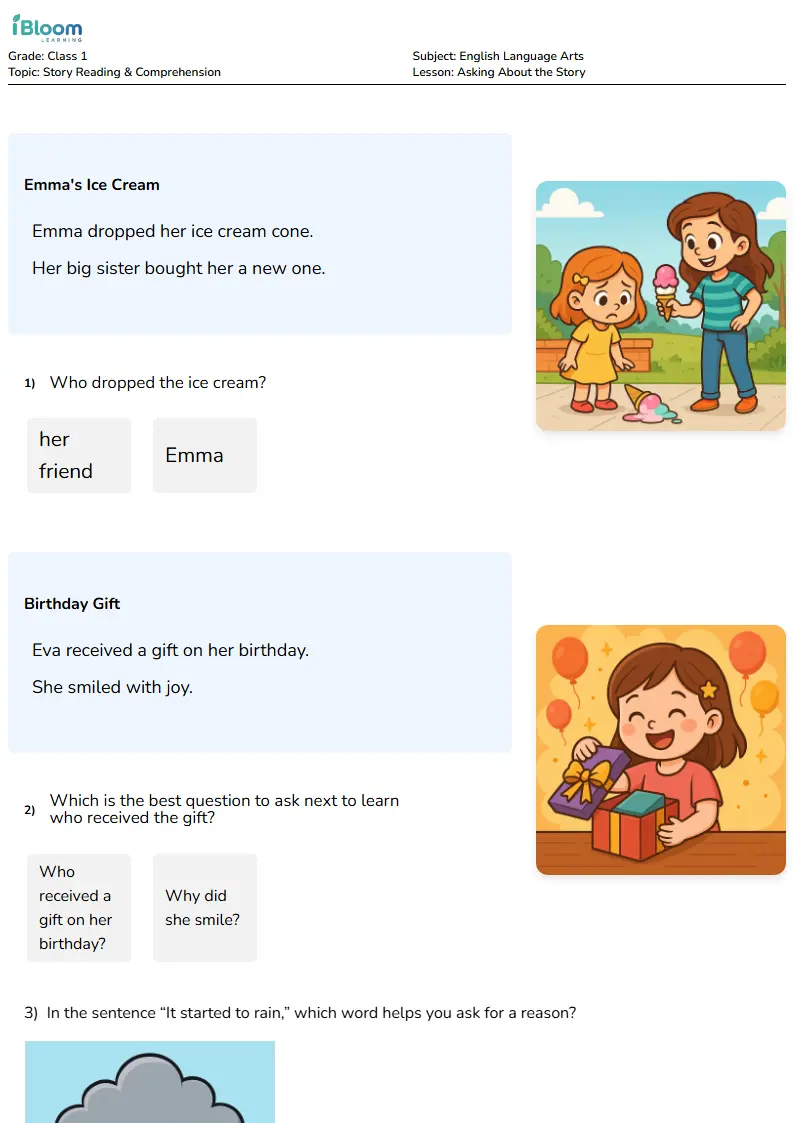
Free Asking About the Story Worksheets for Class 1
Looking for class 1 english language arts help? Download free, interactive asking about the story worksheets. AI-personalized and Common Core-aligned. Practice early literacy with iBloom.
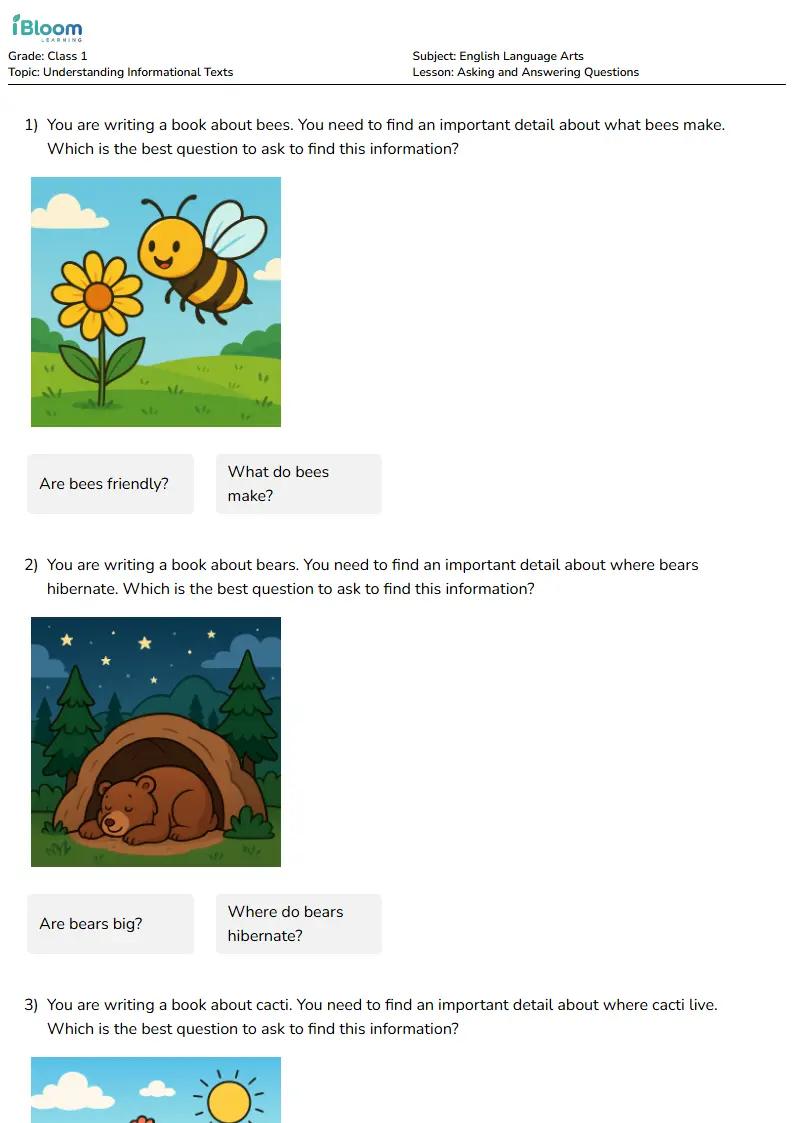
Free Asking and Answering Questions Worksheets for Class 1
Looking for class 1 english language arts help? Download free, interactive asking and answering questions worksheets. AI-personalized and Common Core-aligned. Practice early literacy with iBloom.
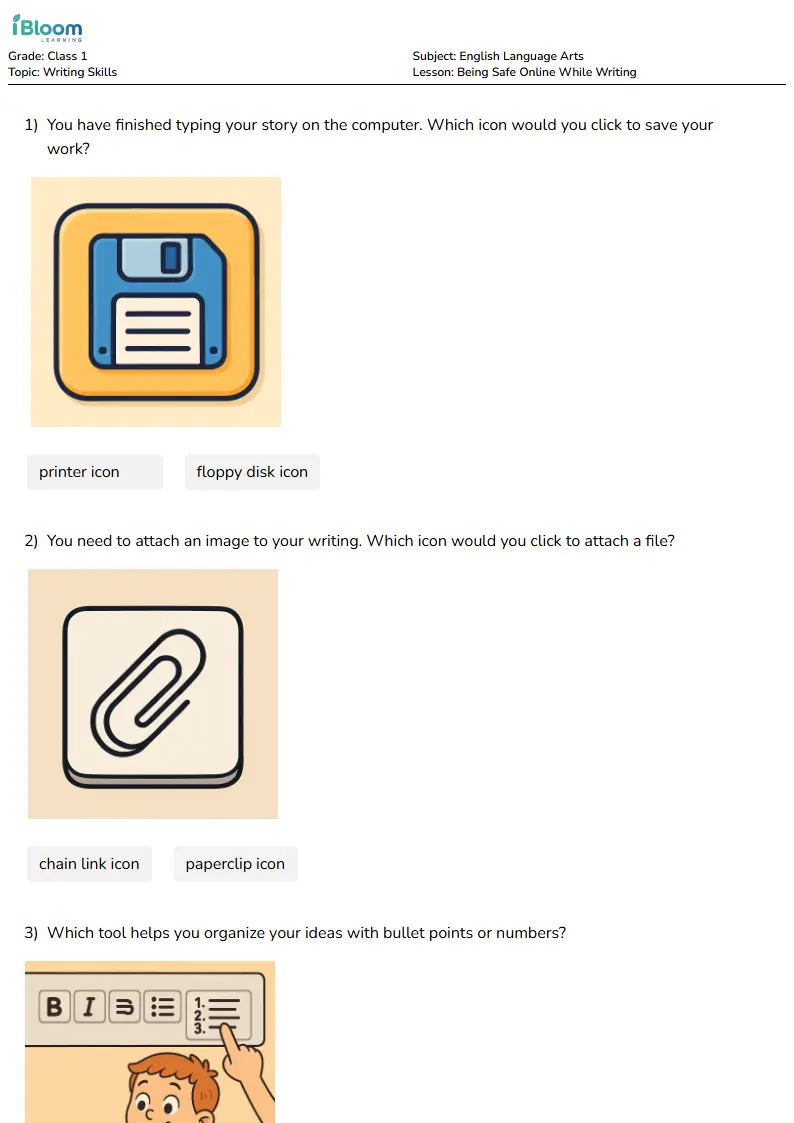
Free Being Safe Online While Writing Worksheets for Class 1
Looking for class 1 english language arts help? Download free, interactive being safe online while writing worksheets. AI-personalized and Common Core-aligned. Practice early literacy with iBloom.
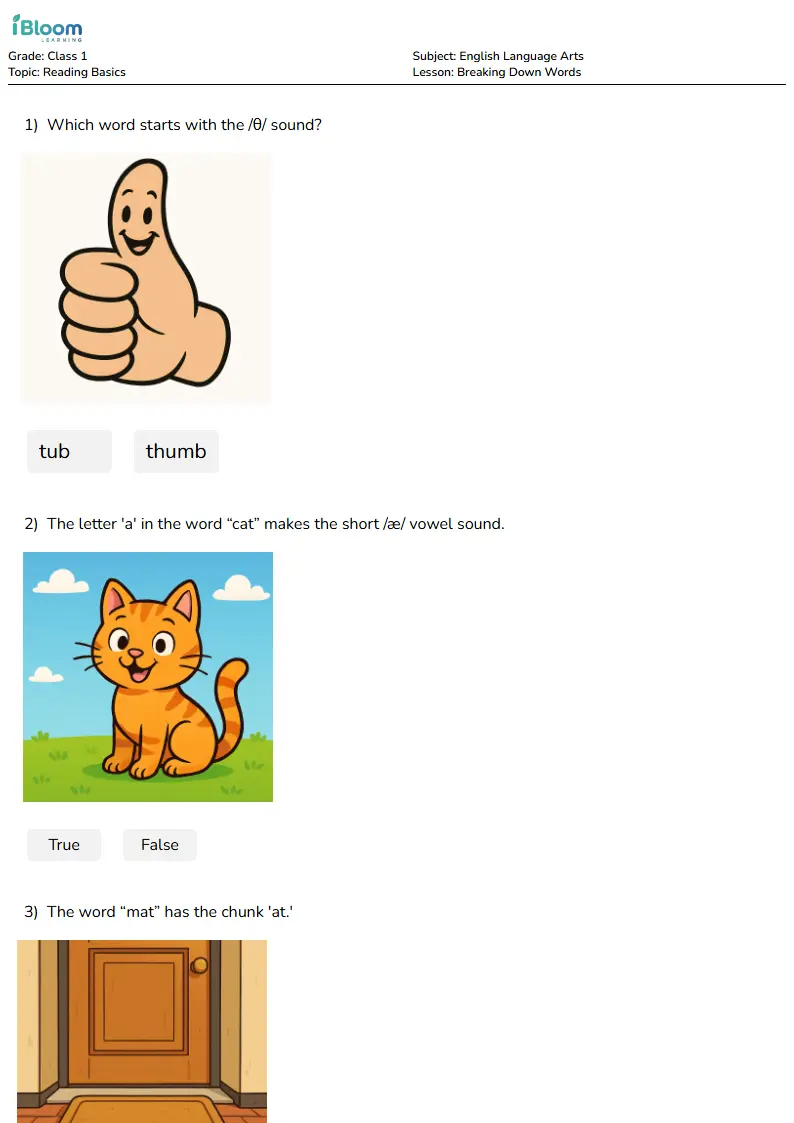
Free Breaking Down Words Worksheets for Class 1
Looking for class 1 english language arts help? Download free, interactive breaking down words worksheets. AI-personalized and Common Core-aligned. Practice early literacy with iBloom.
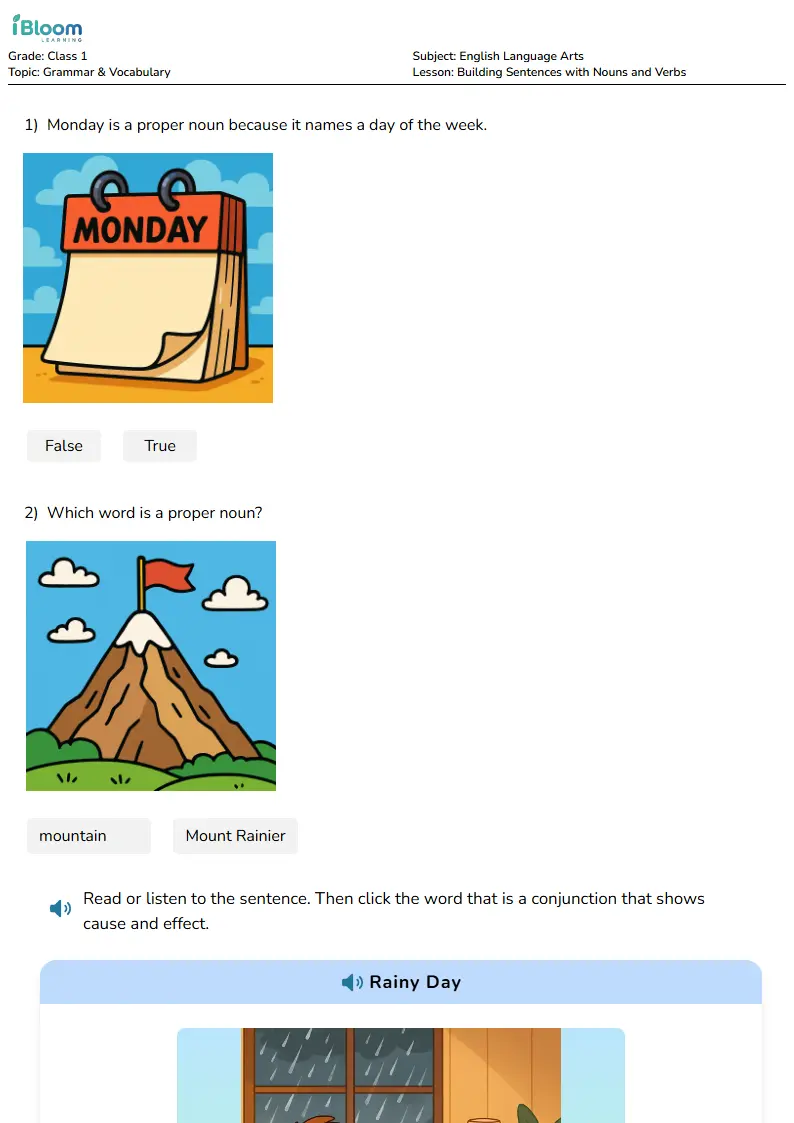
Free Building Sentences with Nouns and Verbs Worksheets for Class 1
Looking for class 1 english language arts help? Download free, interactive building sentences with nouns and verbs worksheets. AI-personalized and Common Core-aligned. Practice early literacy with iBloom.
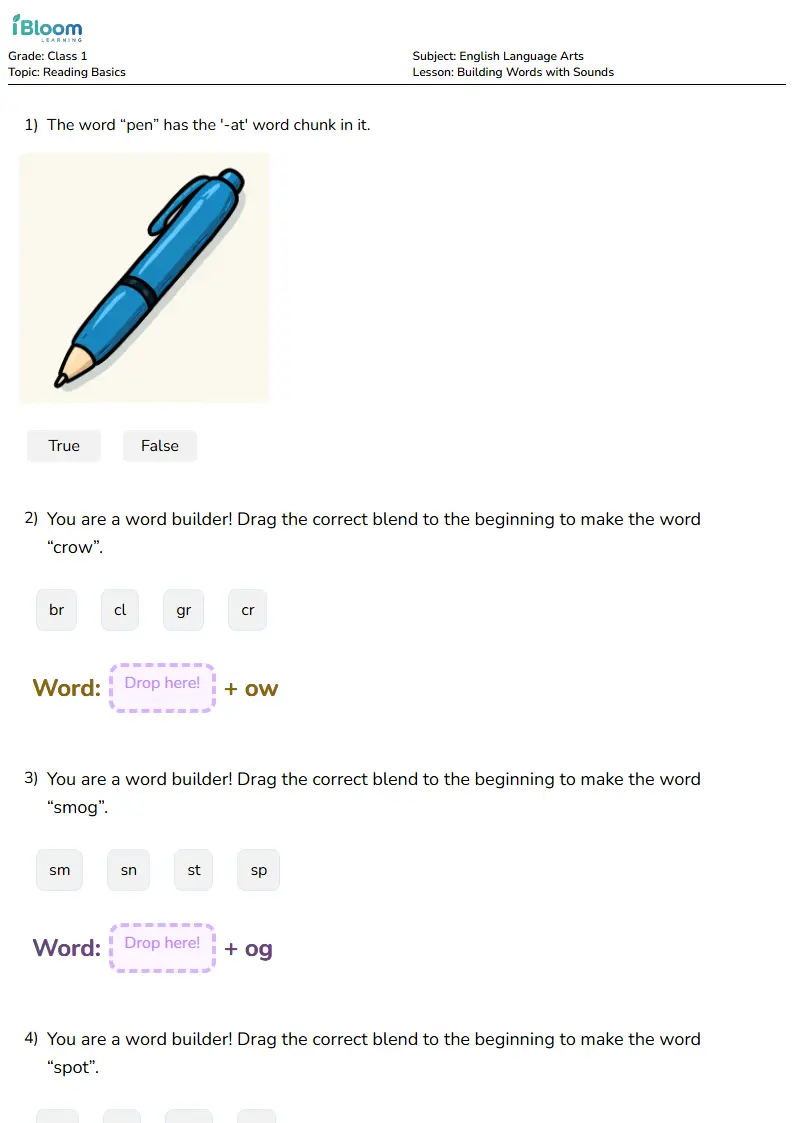
Free Building Words with Sounds Worksheets for Class 1
Looking for class 1 english language arts help? Download free, interactive building words with sounds worksheets. AI-personalized and Common Core-aligned. Practice early literacy with iBloom.
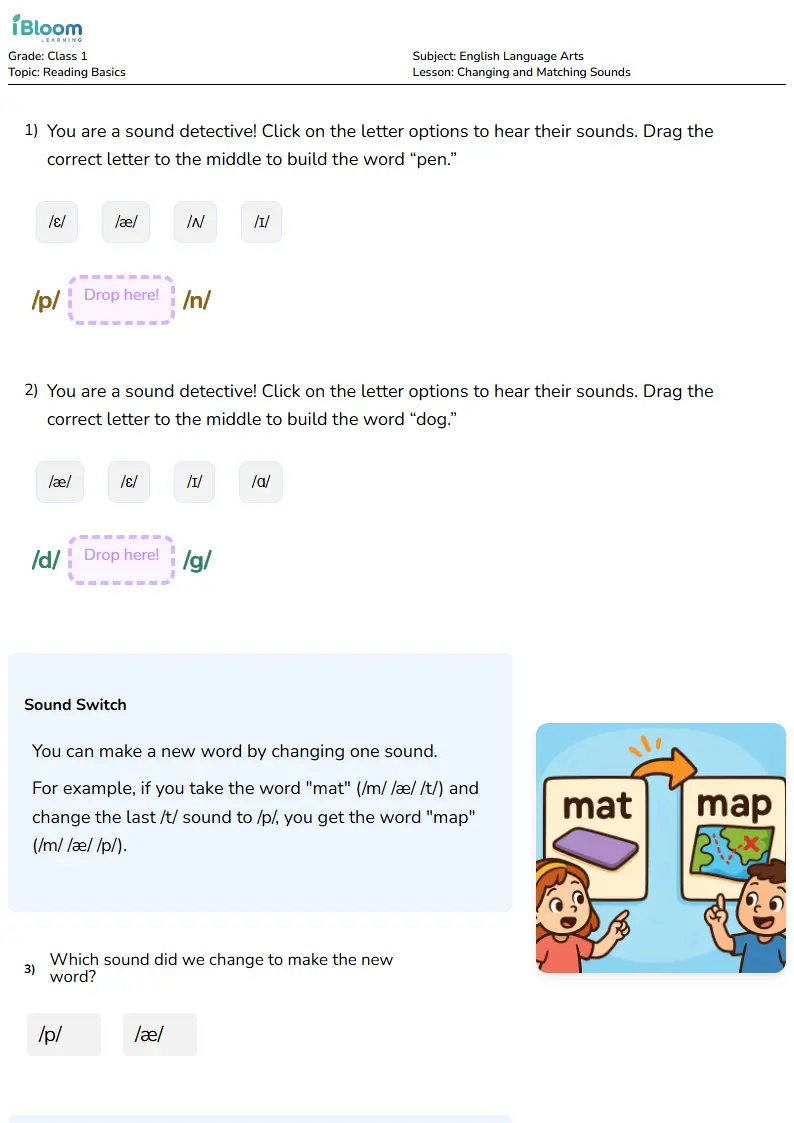
Free Changing and Matching Sounds Worksheets for Class 1
Looking for class 1 english language arts help? Download free, interactive changing and matching sounds worksheets. AI-personalized and Common Core-aligned. Practice early literacy with iBloom.
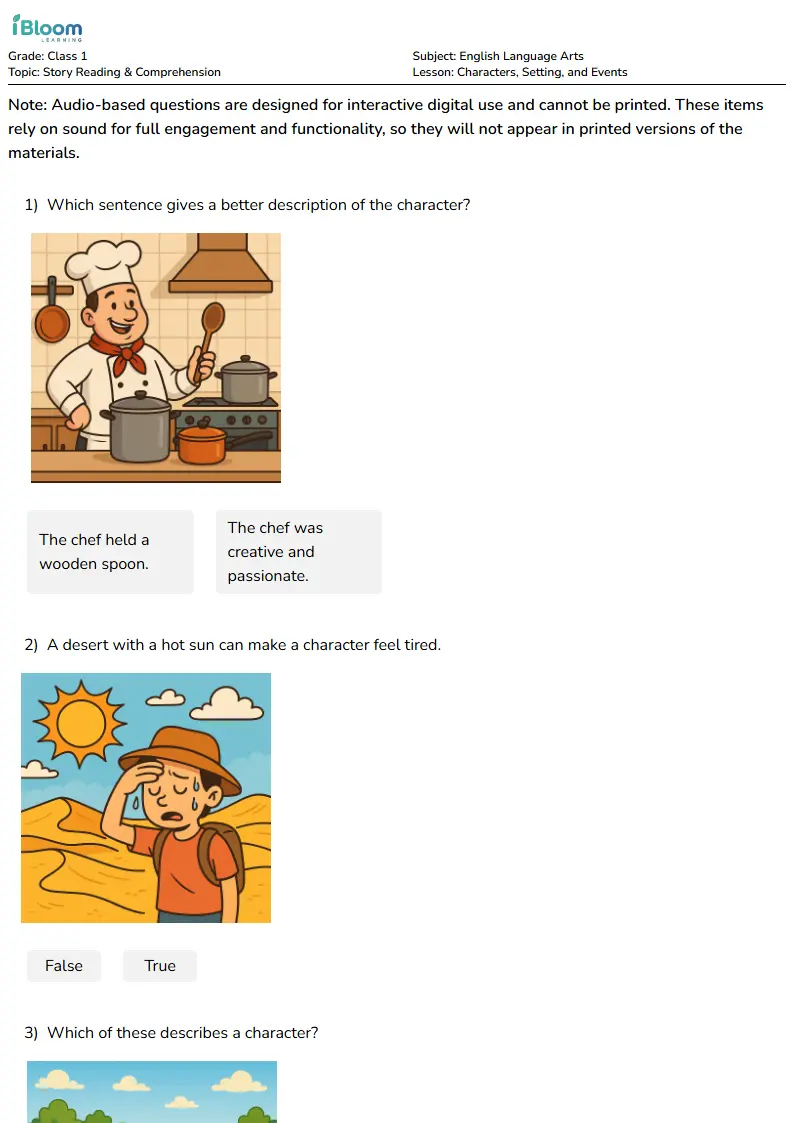
Free Characters, Setting, and Events Worksheets for Class 1
Looking for class 1 english language arts help? Download free, interactive characters, setting, and events worksheets. AI-personalized and Common Core-aligned. Practice early literacy with iBloom.
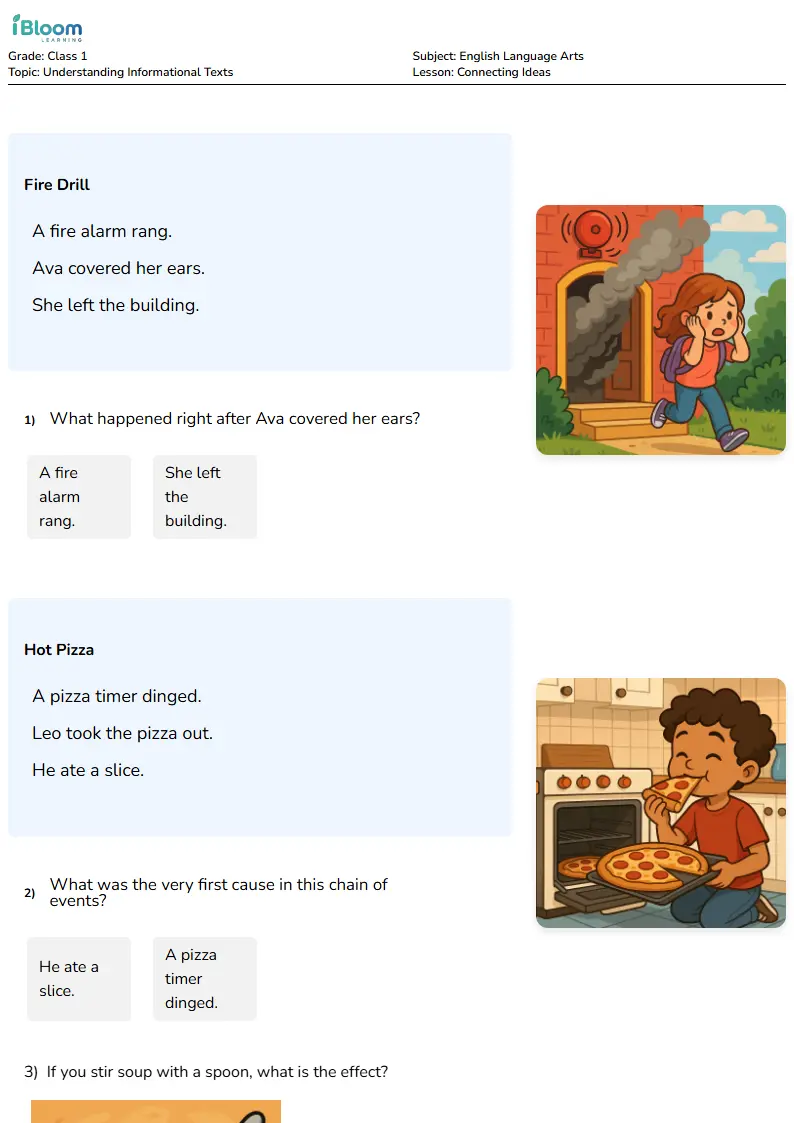
Free Connecting Ideas Worksheets for Class 1
Looking for class 1 english language arts help? Download free, interactive connecting ideas worksheets. AI-personalized and Common Core-aligned. Practice early literacy with iBloom.
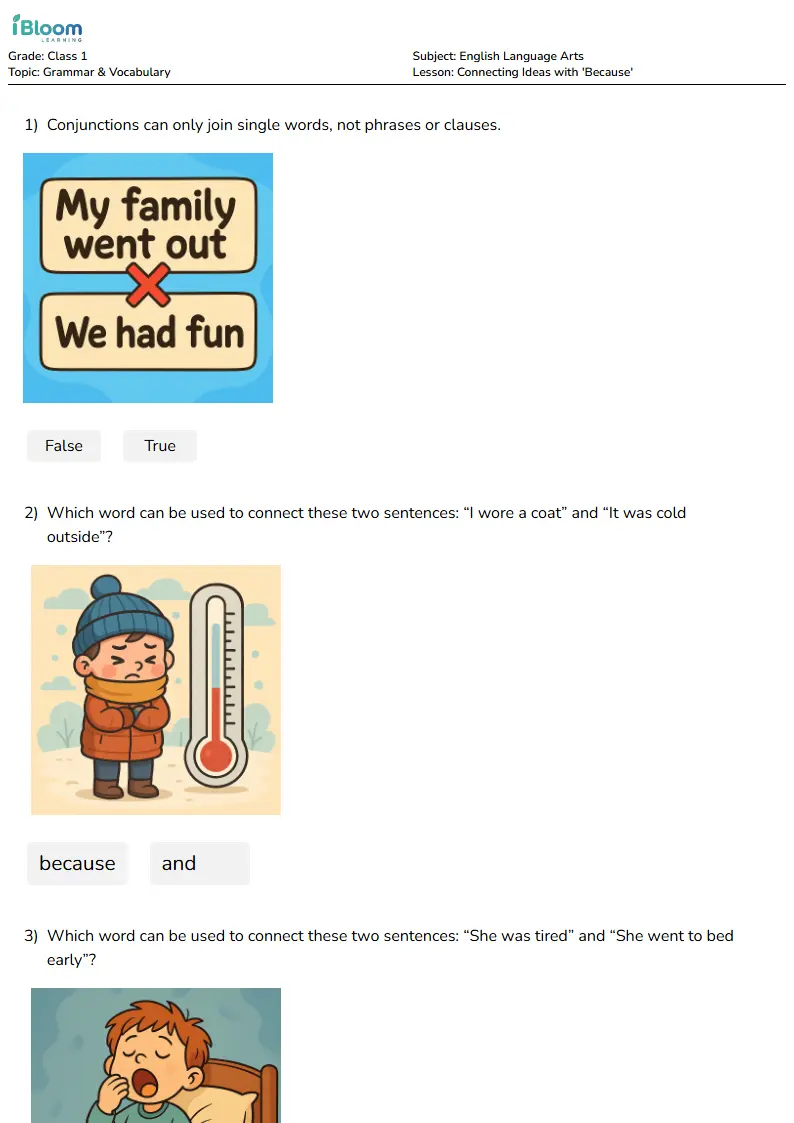
Free Connecting Ideas with 'Because' Worksheets for Class 1
Looking for class 1 english language arts help? Download free, interactive connecting ideas with 'because' worksheets. AI-personalized and Common Core-aligned. Practice early literacy with iBloom.
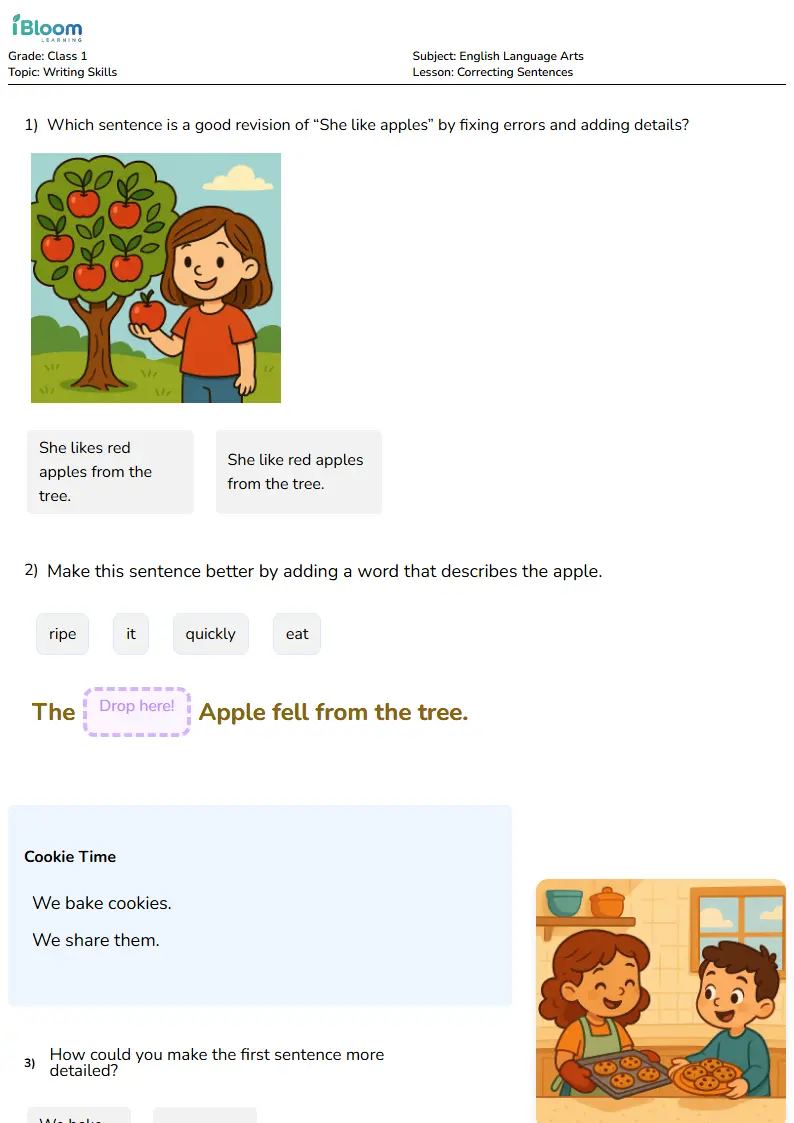
Free Correcting Sentences Worksheets for Class 1
Looking for class 1 english language arts help? Download free, interactive correcting sentences worksheets. AI-personalized and Common Core-aligned. Practice early literacy with iBloom.
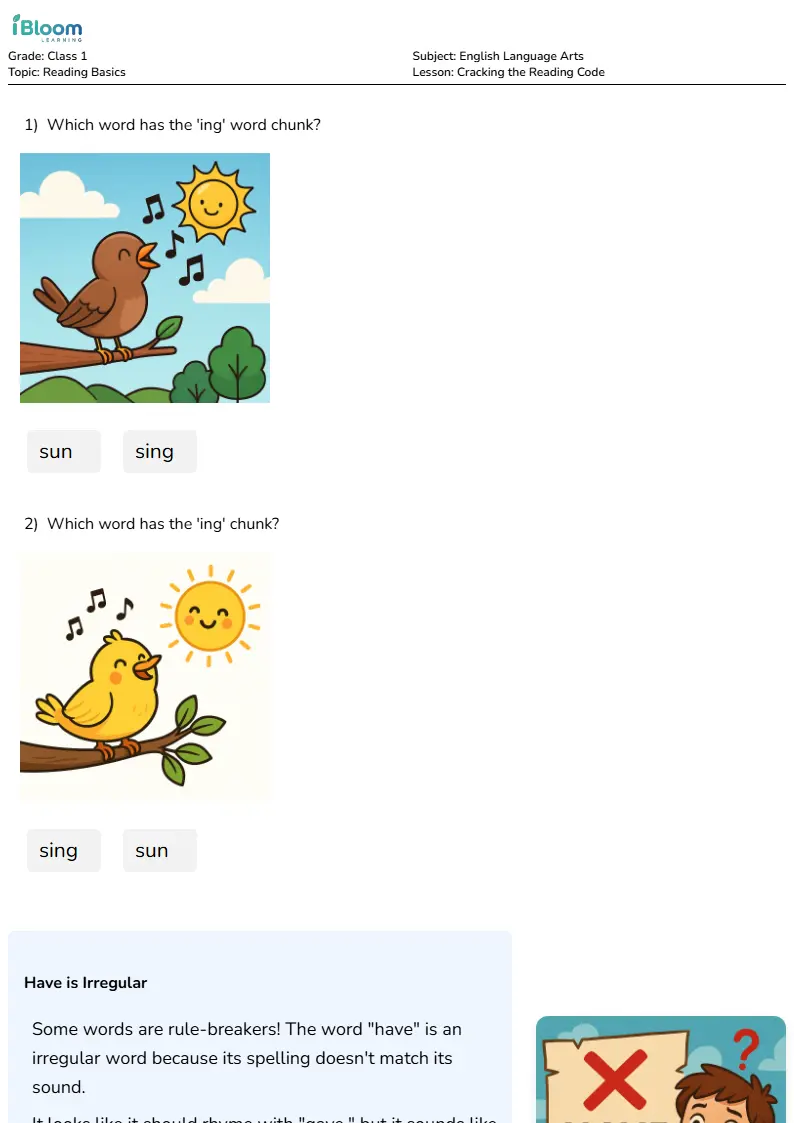
Free Cracking the Reading Code Worksheets for Class 1
Looking for class 1 english language arts help? Download free, interactive cracking the reading code worksheets. AI-personalized and Common Core-aligned. Practice early literacy with iBloom.
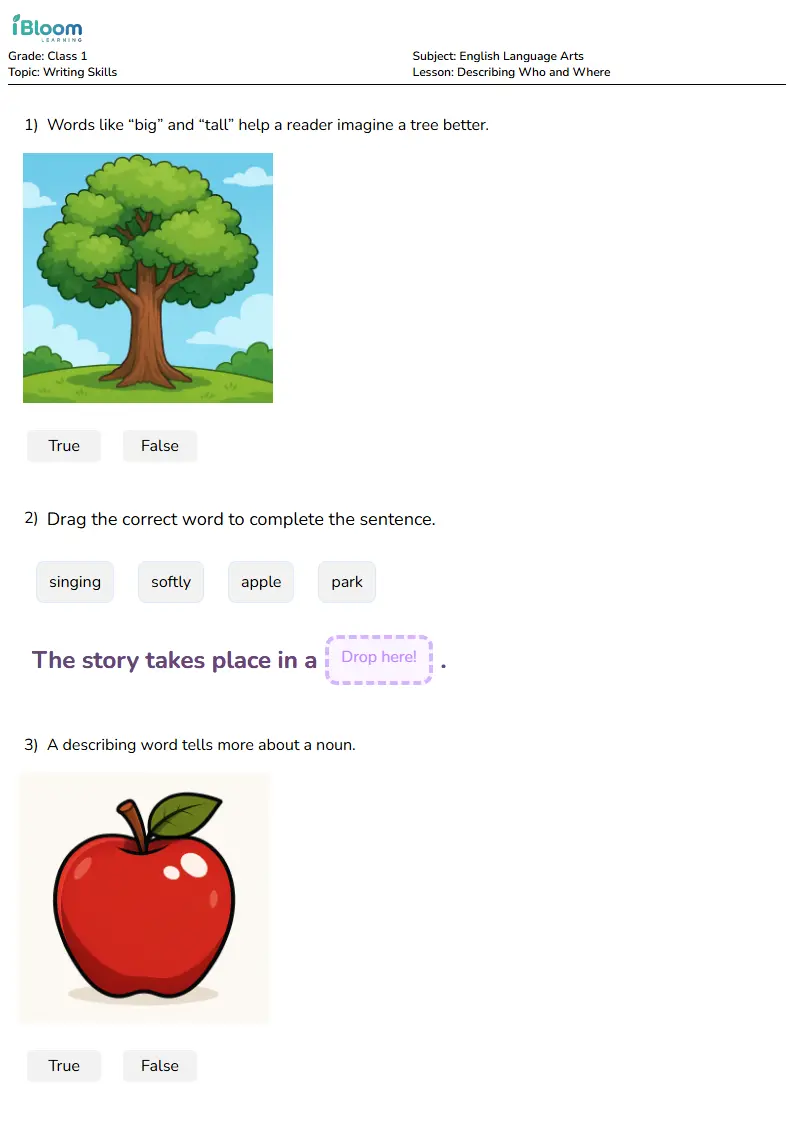
Free Describing Who and Where Worksheets for Class 1
Looking for class 1 english language arts help? Download free, interactive describing who and where worksheets. AI-personalized and Common Core-aligned. Practice early literacy with iBloom.
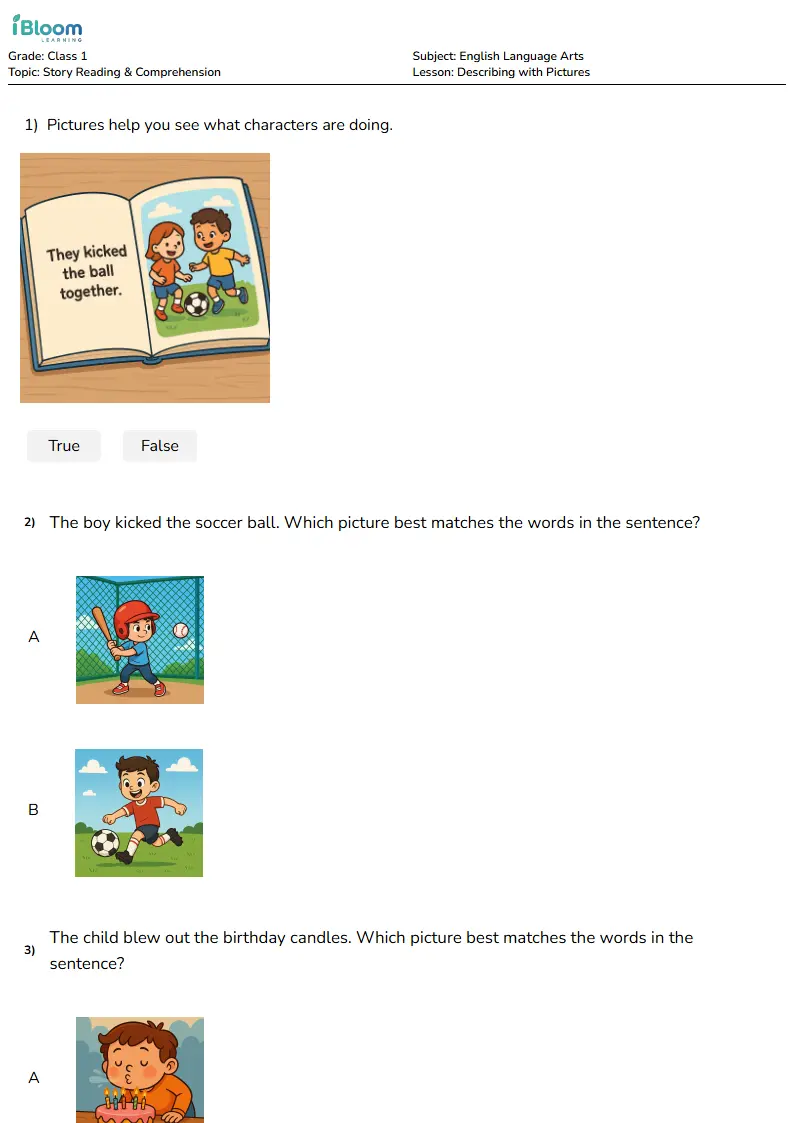
Free Describing with Pictures Worksheets for Class 1
Looking for class 1 english language arts help? Download free, interactive describing with pictures worksheets. AI-personalized and Common Core-aligned. Practice early literacy with iBloom.
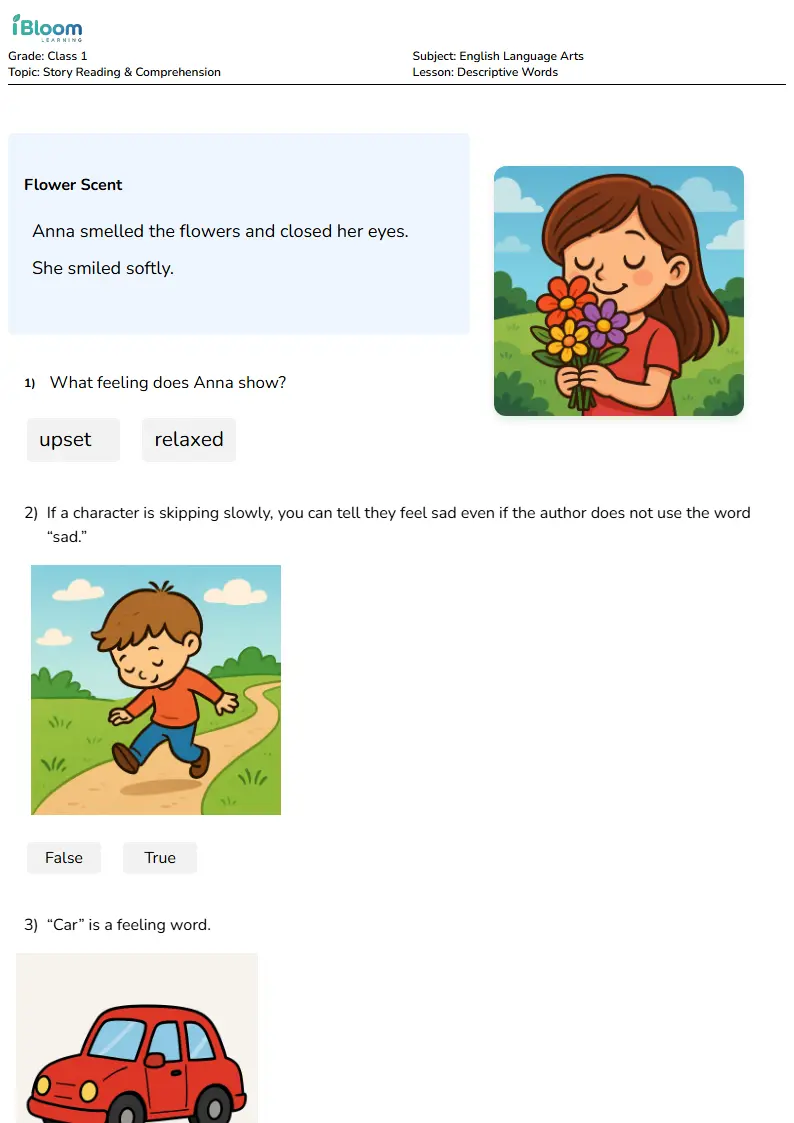
Free Descriptive Words Worksheets for Class 1
Looking for class 1 english language arts help? Download free, interactive descriptive words worksheets. AI-personalized and Common Core-aligned. Practice early literacy with iBloom.
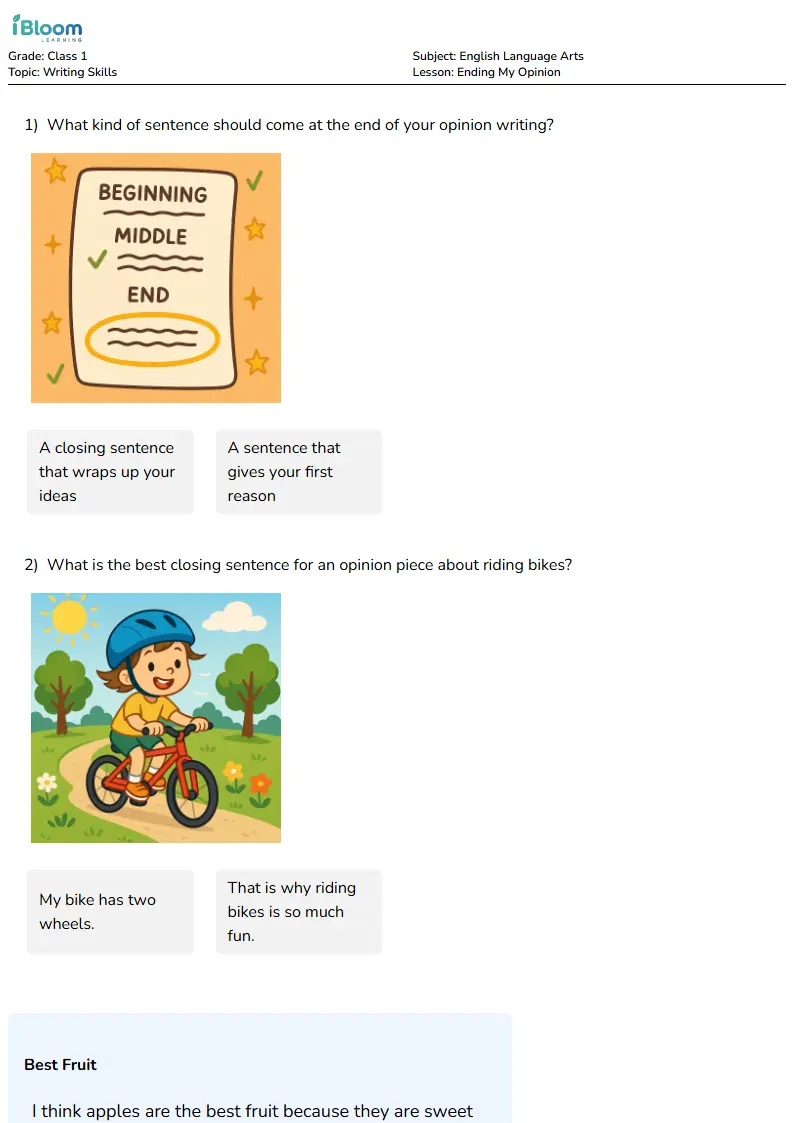
Free Ending My Opinion Worksheets for Class 1
Looking for class 1 english language arts help? Download free, interactive ending my opinion worksheets. AI-personalized and Common Core-aligned. Practice early literacy with iBloom.
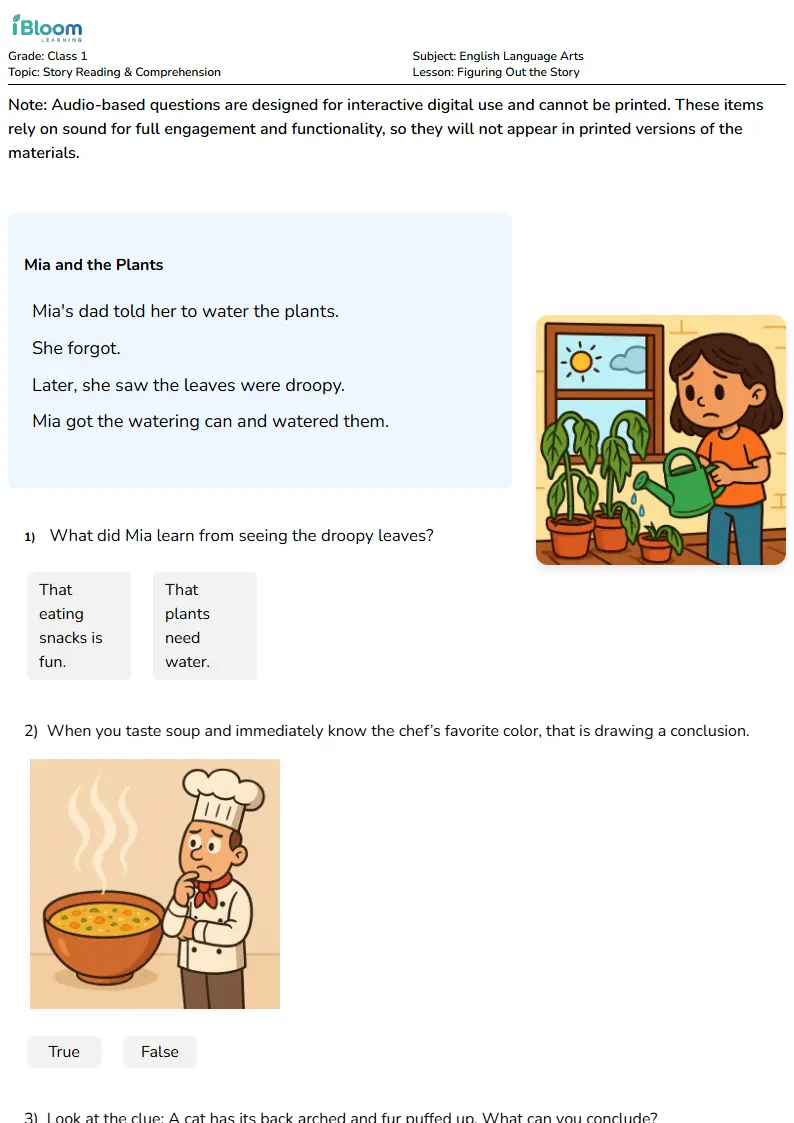
Free Figuring Out the Story Worksheets for Class 1
Looking for class 1 english language arts help? Download free, interactive figuring out the story worksheets. AI-personalized and Common Core-aligned. Practice early literacy with iBloom.
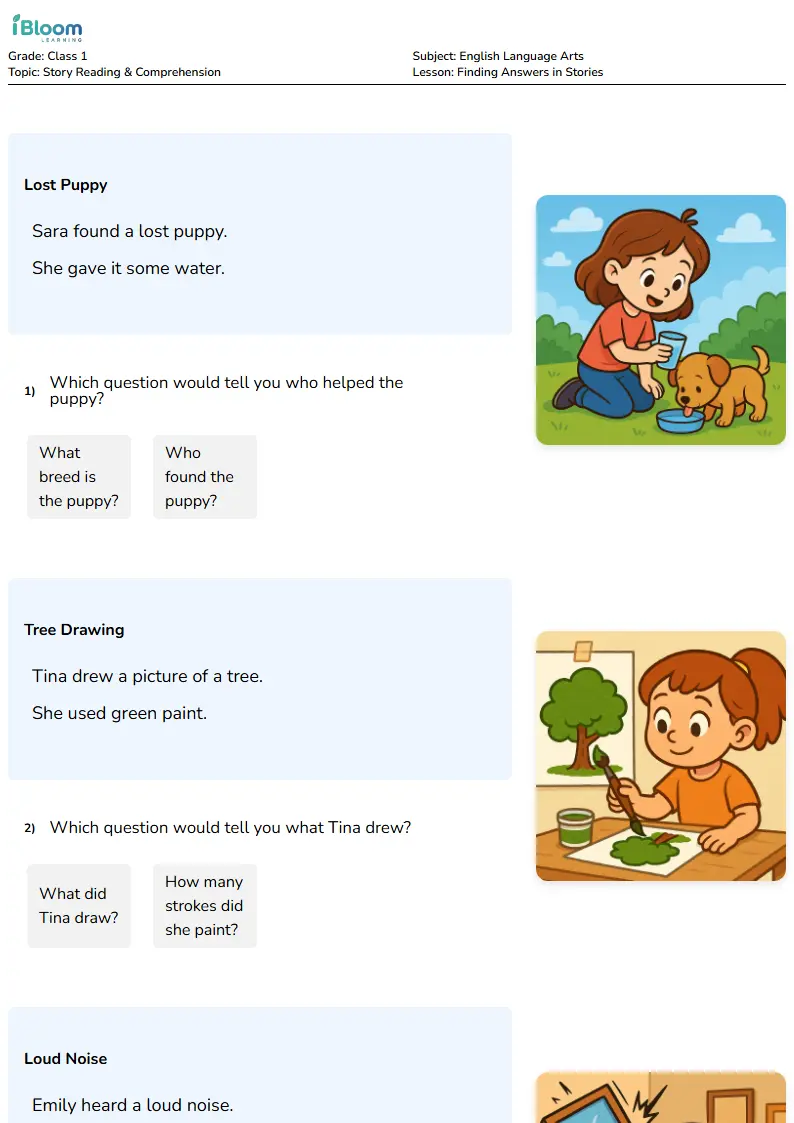
Finding Answers in Stories Worksheet for Class 1
Help Class 1 readers choose questions that match short story details, use who and what clues, and explain where each answer appears in the text.
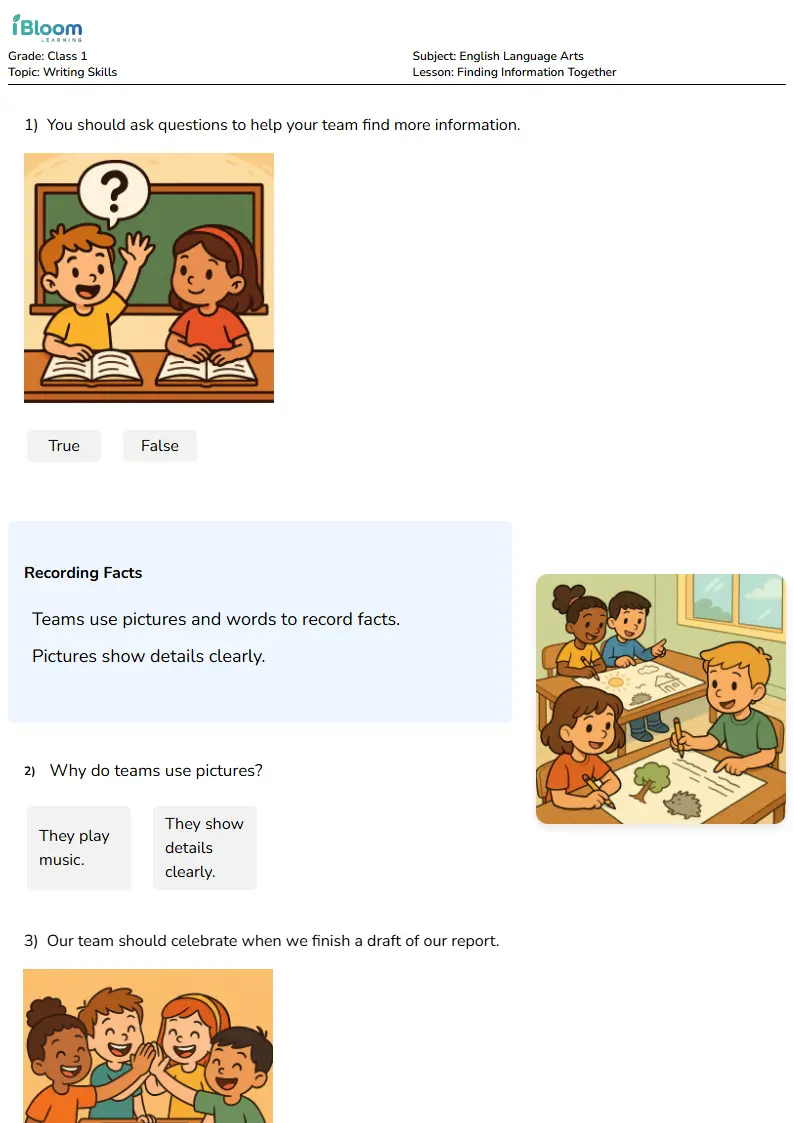
Free Finding Information Together Worksheets for Class 1
Looking for class 1 english language arts help? Download free, interactive finding information together worksheets. AI-personalized and Common Core-aligned. Practice early literacy with iBloom.
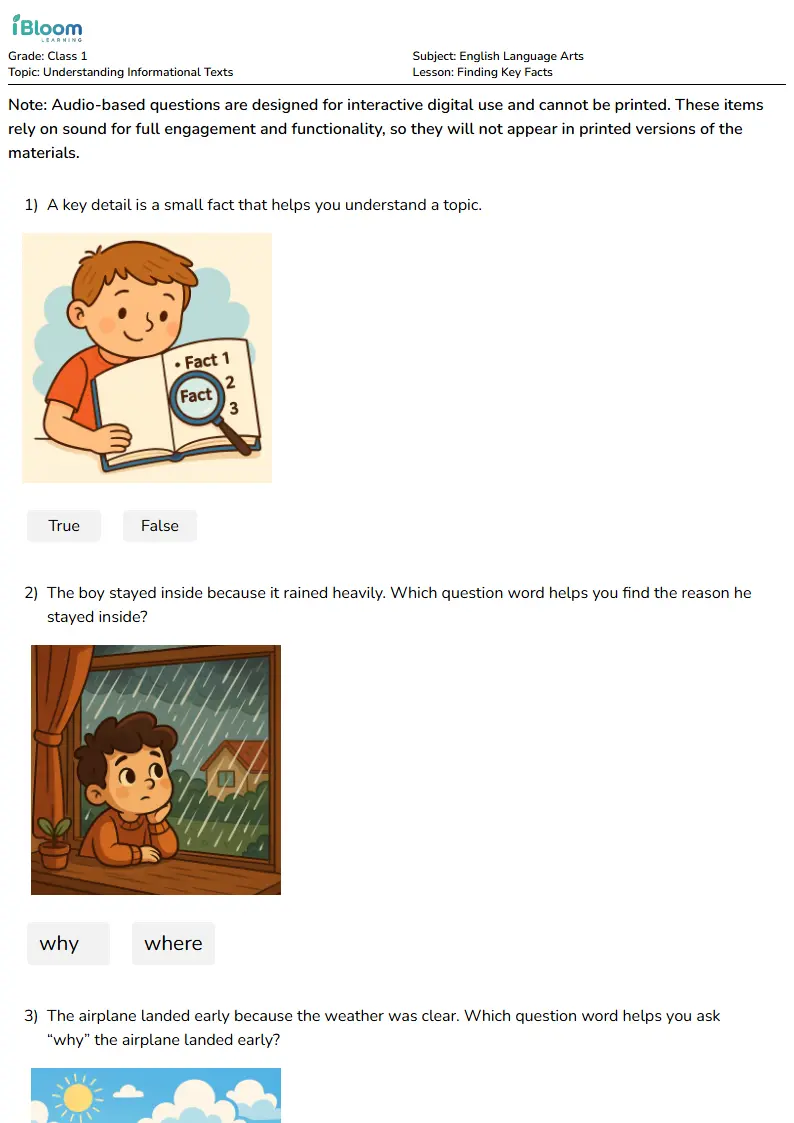
Free Finding Key Facts Worksheets for Class 1
Looking for class 1 english language arts help? Download free, interactive finding key facts worksheets. AI-personalized and Common Core-aligned. Practice early literacy with iBloom.
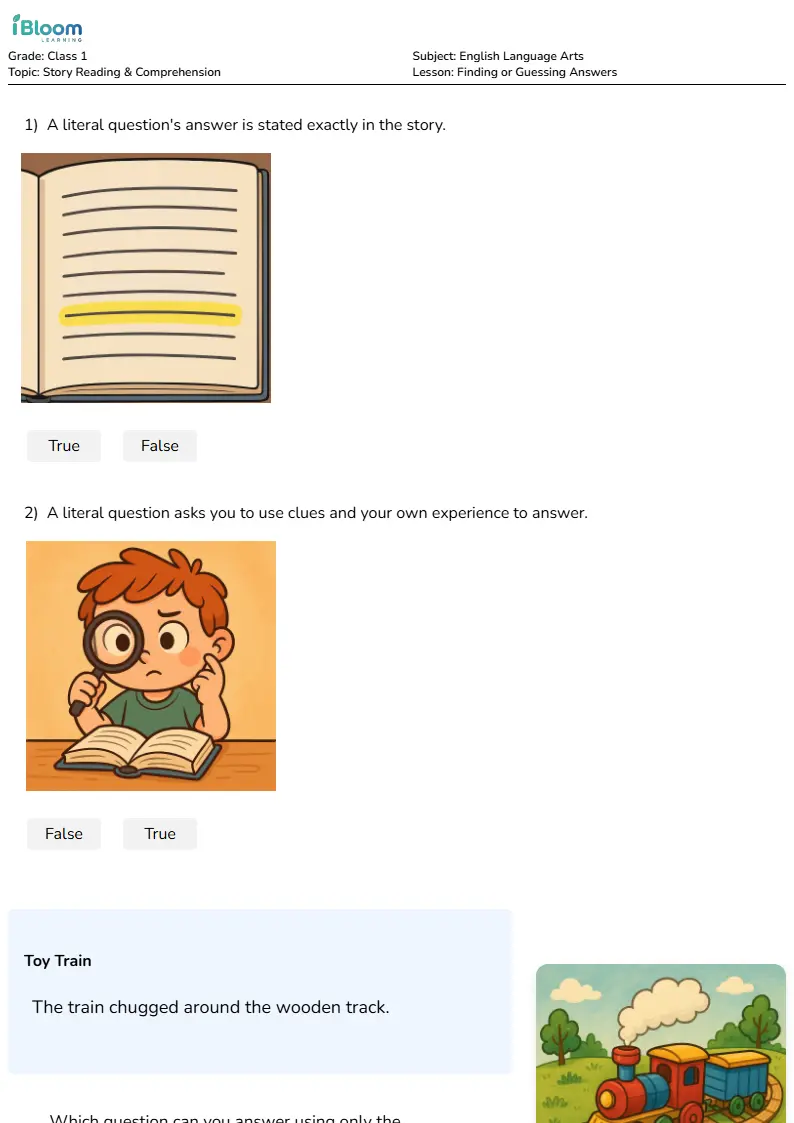
Free Finding or Guessing Answers Worksheets for Class 1
Looking for class 1 english language arts help? Download free, interactive finding or guessing answers worksheets. AI-personalized and Common Core-aligned. Practice early literacy with iBloom.
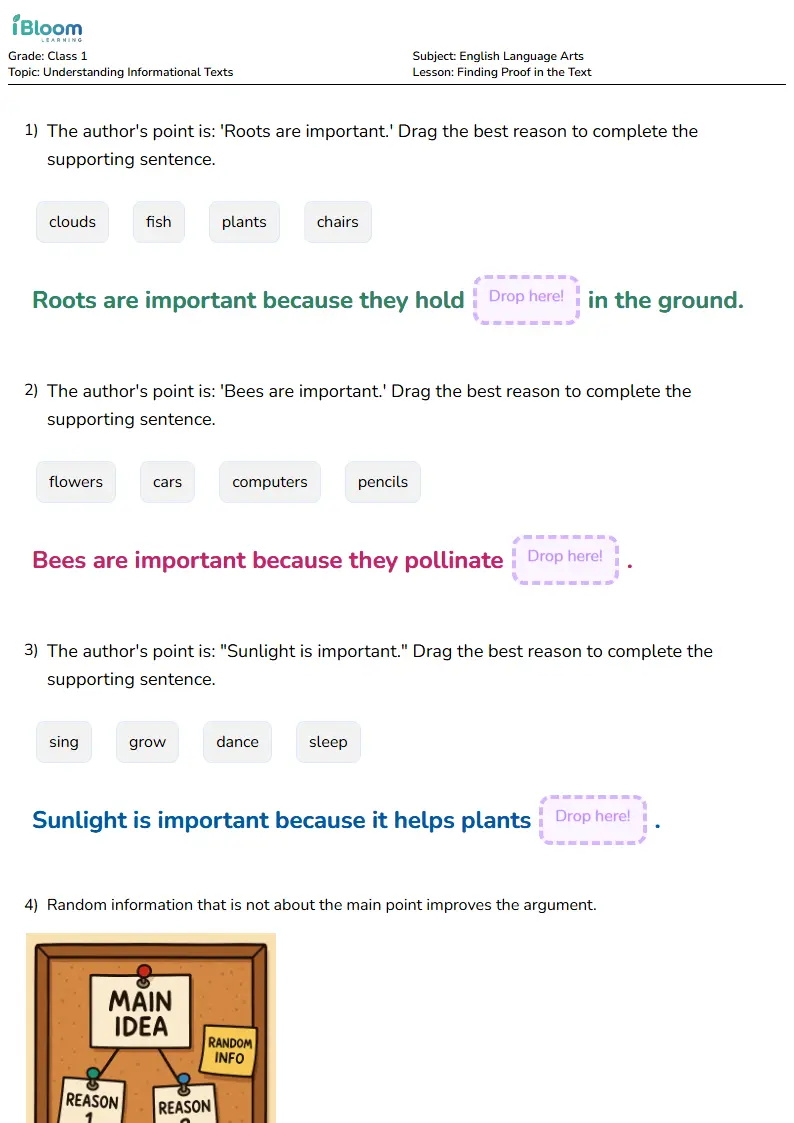
Free Finding Proof in the Text Worksheets for Class 1
Looking for class 1 english language arts help? Download free, interactive finding proof in the text worksheets. AI-personalized and Common Core-aligned. Practice early literacy with iBloom.
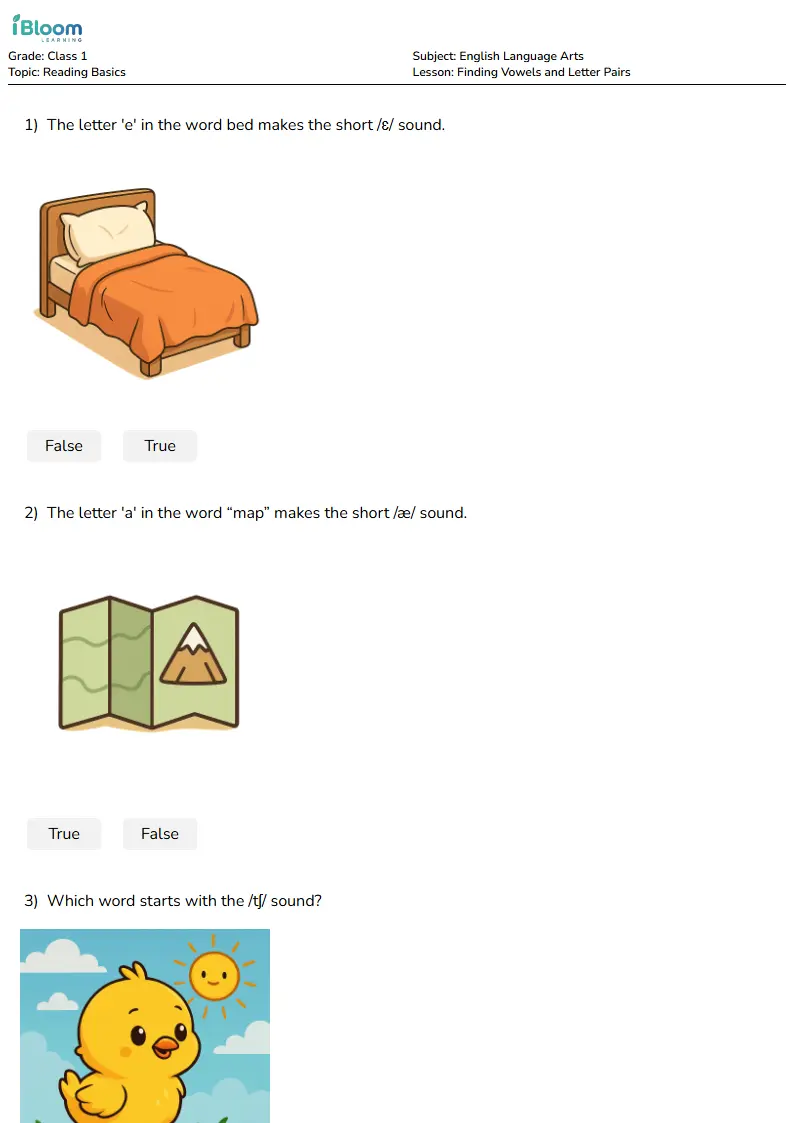
Free Finding Vowels and Letter Pairs Worksheets for Class 1
Looking for class 1 english language arts help? Download free, interactive finding vowels and letter pairs worksheets. AI-personalized and Common Core-aligned. Practice early literacy with iBloom.
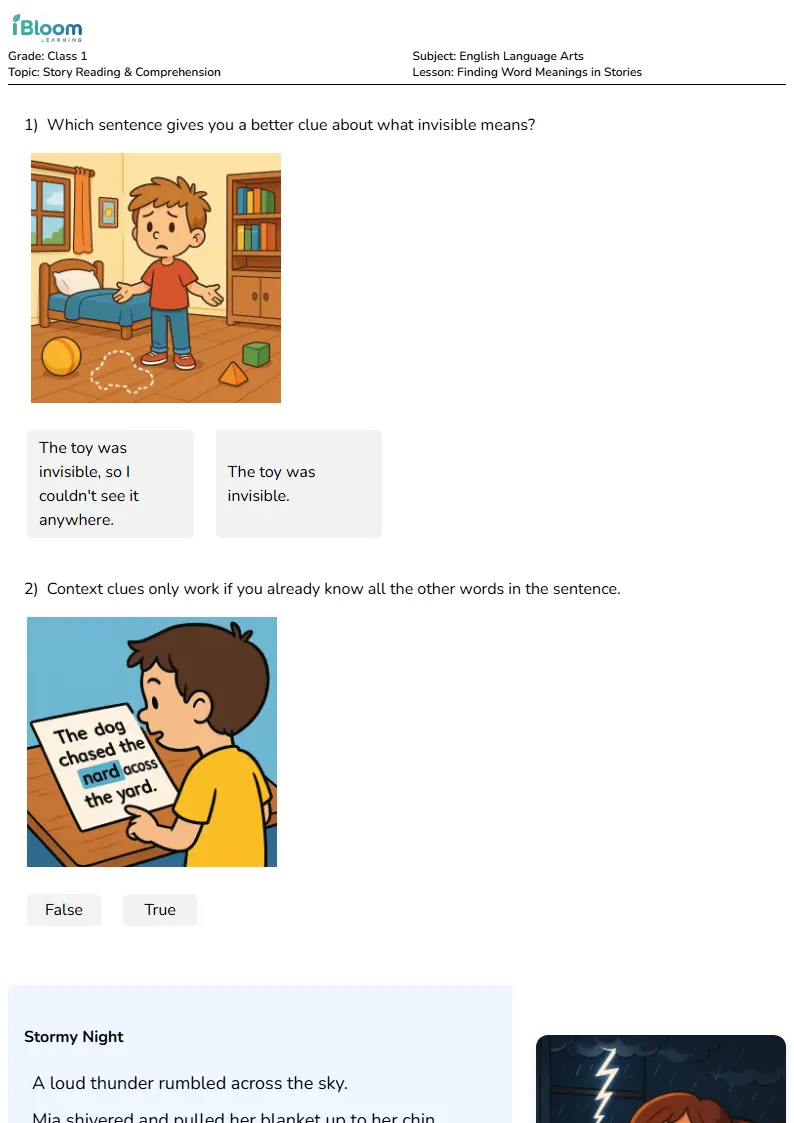
Free Finding Word Meanings in Stories Worksheets for Class 1
Looking for class 1 english language arts help? Download free, interactive finding word meanings in stories worksheets. AI-personalized and Common Core-aligned. Practice early literacy with iBloom.